
How to Resolve the "SIM Not Provisioned MM 2" Error on Mobile Devices

The "SIM Not Provisioned MM 2" error is a critical notification on both Android and iPhone devices, indicating a communication failure between the mobile phone and the cellular network. This issue typically occurs immediately after inserting a new SIM card, switching devices, or if there is an administrative problem with the carrier account. Understanding the underlying cause is the first step toward resolution. The term "SIM not provisioned" confirms the device cannot register or authenticate itself to the network provider, preventing essential services like voice calls and data access. The designation "MM 2" is a generic identifier for this type of mobile network error.
Understanding the Provisioning Error
A provisioned SIM card means the carrier has activated your line and successfully registered its details onto the network infrastructure. Lack of provisioning suggests:
- The new SIM/eSIM has not yet been activated by the carrier.
- The physical SIM card is incorrectly seated or has accumulated dust.
- The account has been disconnected (often resulting in a specific "SIM not provisioned for voice" error).
- There is a temporary network or software glitch on the device.
Phase 1: Quick Software Fixes (Recommended First)
1. Toggle Airplane Mode
This simple action forces the device's radios to reset, terminating all cellular connections and initiating a fresh reconnection attempt. This often resolves minor network glitches or temporary registration failures.
- Android: Swipe down twice to access the Quick Settings panel, then tap the Airplane Mode tile to enable it. Wait 10-15 seconds, and tap the tile again to disable it.
- iPhone: Navigate to Settings and use the Airplane Mode toggle, or swipe down for the Control Center.
Wait for the network signal indicator to stabilize after disabling the mode.


2. Perform a System Restart
A full device reboot can clear corrupted temporary memory states and reinitialize the SIM card reader hardware. This is a crucial step if the error is due to a recent software glitch.
- Android: Press and hold the Power button (or Power + Volume Up on some models) to access the power menu, then tap Restart.
- iPhone: Initiate a standard iPhone restart procedure.
3. Update Carrier Services (Android) or Carrier Settings (iPhone)
Network connectivity and provisioning protocols are managed by dedicated software components. Ensuring these are current can resolve known compatibility issues.
- Android: Update the Carrier Services app via the Google Play Store page. If an Update button is present, install the latest version.
- iPhone: Go to Settings > General > About. If an update for carrier settings is available, a "Carrier Settings Update" prompt will appear. Tap Update to install it.


Phase 2: Hardware and Account Verification (If Software Fails)
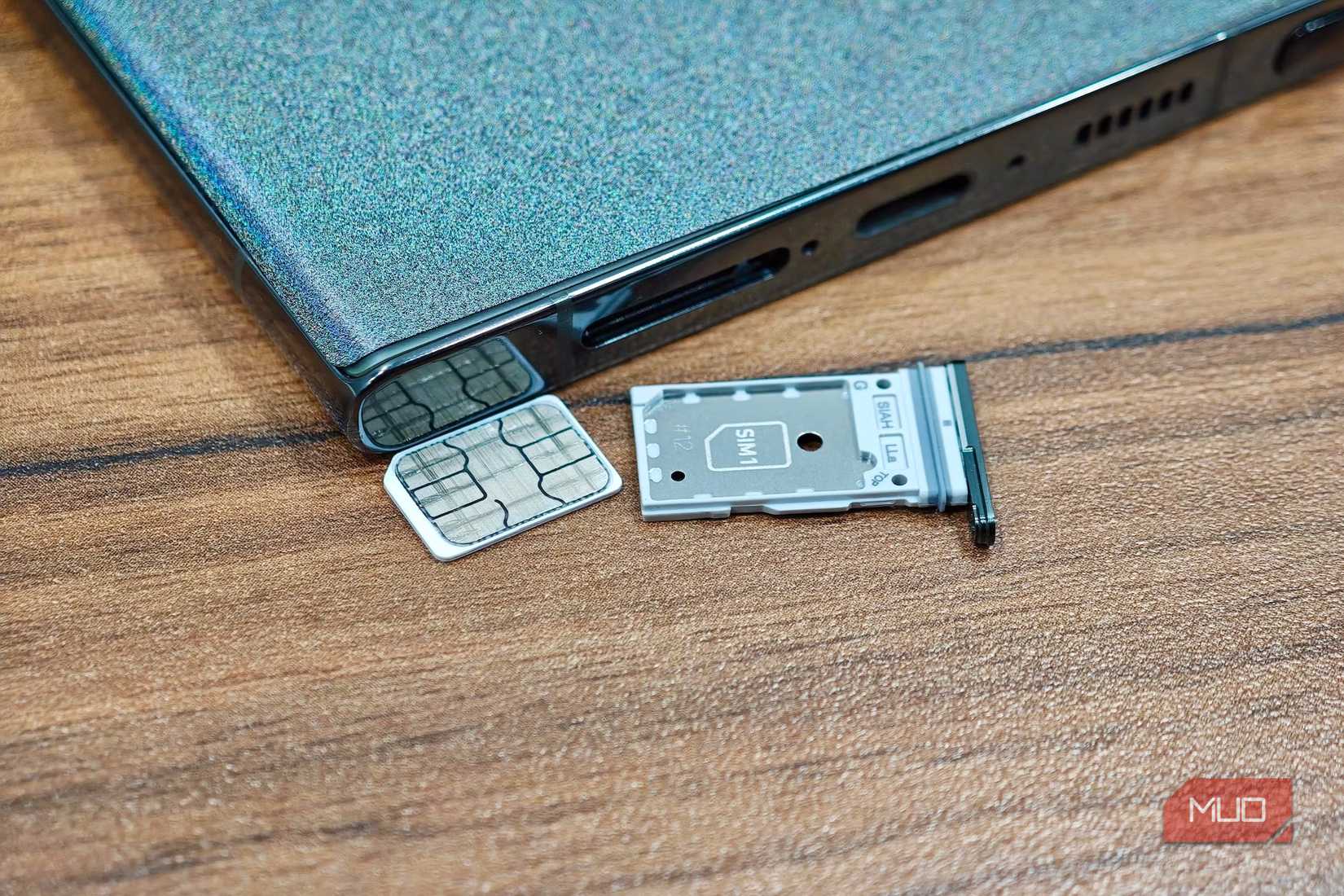
4. Verify and Reseat the Physical SIM Card
A physical misalignment or foreign debris can prevent the phone from reading the SIM. This step ensures the hardware connection is sound.
- Power off your device completely.
- Use a SIM ejector tool to carefully remove the SIM tray.
- Gently remove the SIM card. Inspect it for dust or smudges and wipe the gold contacts with a clean, lint-free cloth.
- Carefully reinsert the SIM card into the tray, ensuring the orientation matches the guide (usually an angled corner).
- Reinsert the tray and power the phone back on.
5. Manually Initiate SIM Card Activation
If the SIM is newly acquired or recently moved to a new device, the carrier may require manual activation, which may take up to 24 hours. The activation method is carrier-dependent, but common methods include:
- Calling a carrier-specific automated activation number.
- Sending a specific SMS code to the carrier.
- Completing the activation process via the carrier's dedicated web portal.
If the SIM was previously active and still shows the error after reseating, there is a high probability the SIM card itself is corrupted or damaged and needs replacement.
Phase 3: Carrier Intervention
6. Contact Your Mobile Network Provider
If all software and hardware troubleshooting steps fail, the issue is almost certainly administrative or related to a network outage specific to your line. Contact your carrier's customer support and provide them with the exact error message ("SIM not provisioned MM 2") and the troubleshooting steps you have performed. They can check the status of your account, confirm the SIM's provisioning status, or arrange for a replacement SIM if necessary.
Frequently Asked Questions (FAQ)
What is the difference between "SIM Not Provisioned MM 2" and "SIM Not Provisioned for Voice"?
"SIM Not Provisioned MM 2" is a broad error indicating a general failure to connect or register with the network. "SIM Not Provisioned for Voice" is a more specific error, often suggesting that while basic network registration might be partially successful, the core service (voice calls) has been administratively suspended or disconnected, usually due to a billing issue.
Can an old SIM card cause this error?
Yes. Older SIM cards can become physically worn or the embedded microchip can degrade over time, leading to intermittent or permanent failures to register with the network. In such cases, obtaining a replacement SIM from the carrier is the only solution.
Will resetting my network settings help fix this error?
While not listed as a primary step, resetting network settings can sometimes resolve provisioning issues by deleting all saved Wi-Fi passwords, Bluetooth connections, and cellular settings (like APNs). This is a valid, though more disruptive, troubleshooting step before contacting the carrier.
Posting Komentar untuk "How to Resolve the "SIM Not Provisioned MM 2" Error on Mobile Devices"